
Overview & Battery Information ▲
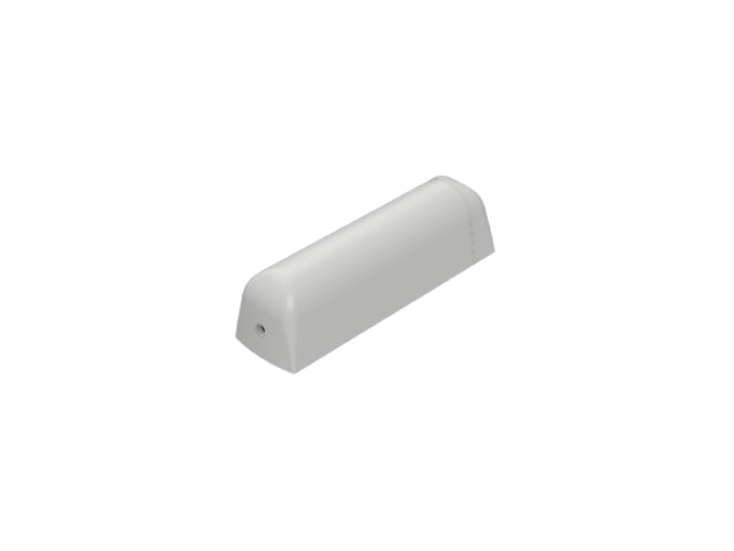
The EMS2 desk sensor is a wireless LoRaWAN® sensor for indoor environments that measures desk occupancy. It can also measure temperature and humidity.
The compact design makes it ideal for mounting under desks.
As you're deploying these in your smart office in combination with the GoBright solution, please ensure you have the GoBright Advanced Gateway (AGW) installed.
Batteries are not included. The EMS2 requires 1 x AA 3.6V lithium battery. Standard 1.5V batteries are not supported and will not power the device.
When using the recommended batteries, you can expect a battery life of up to 5 years, depending on usage.
Checklist ▼
✓
A smartphone with the GoBright app installed. This is available for free from both the Apple App Store and the Google Play Store.
✓
Full admin access rights for your GoBright account.
✓
The GoBright advanced gateway (AGW) that has been configured and commissioned. We've put together a full guide of how to get up and running in this article.
✓
Bluetooth and NFC enabled on the smartphone.
Installation Recommendations ▼
- Ensure the sensor has a clear line of sight to the member of staff sat at the desk.
- Place the sensor far enough back under the desk to avoid accidental damage. For optimal occupancy the sensor should be placed between 10 and 20cm from the edge of the desk. However, the sensor can detect occupancy of up to 50cm with a 60° field of view.
- Do not place the sensor near heat / cooling equipment such as under-desk heaters.
Commissioning Steps ▼
- Carefully remove the cover from the device and power it up with the AA 3.6V battery. The LED on the device will quickly flash red and green at the same time. The LED does not constantly stay on, but flashes every 30 seconds after that.
- Open the GoBright app on your phone and select the 3 grid lines in the corner and then Admin tools.
- Select LoRa Sensors and then Commission a Sensor.
- The sensor vendor you need is Elsys.
You will now see the following:
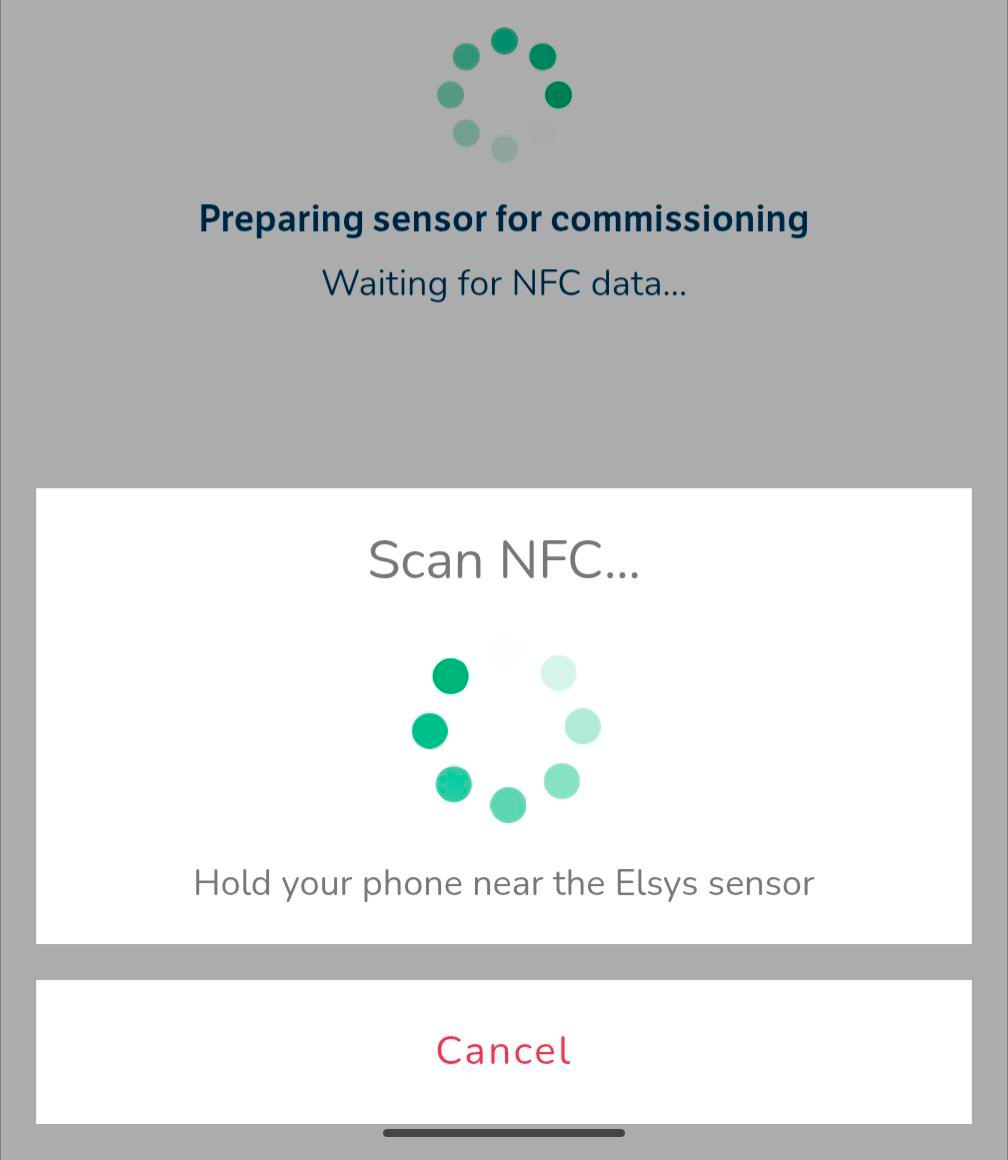
- Hold your phone to the rear of the sensor to retrieve the information. You'll then see the following screen:
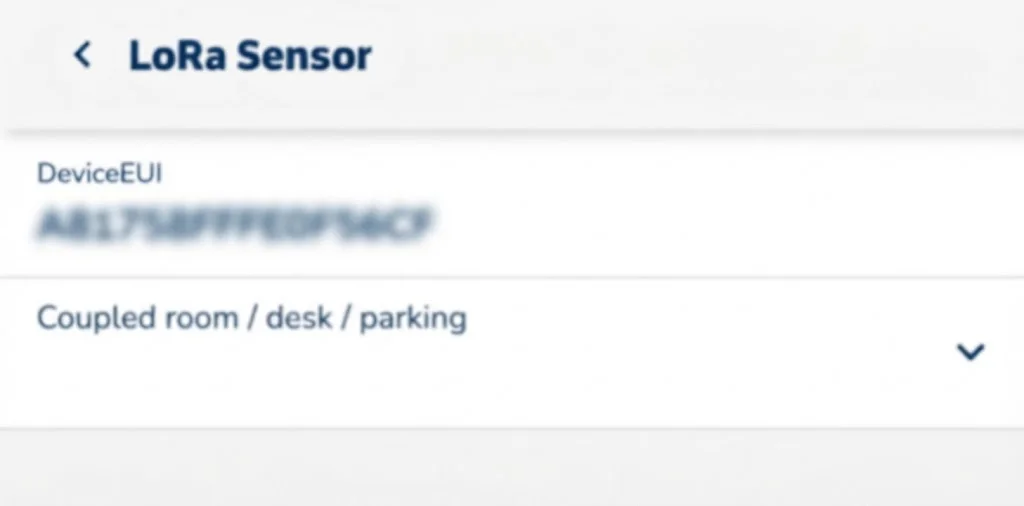
- Link the sensor to the appropriate desk, room or parking space.
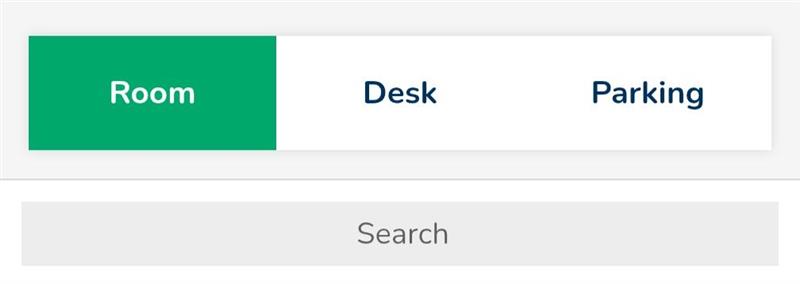
- On the next page select Commission Sensor. It will then ask you to confirm the link, so hold your phone to the rear of the sensor again.
- All done! You will automatically be directed to the following page (same as step 3). However, on this page, select 'LoRa Sensors' and you will see the sensor that you've just commissioned:
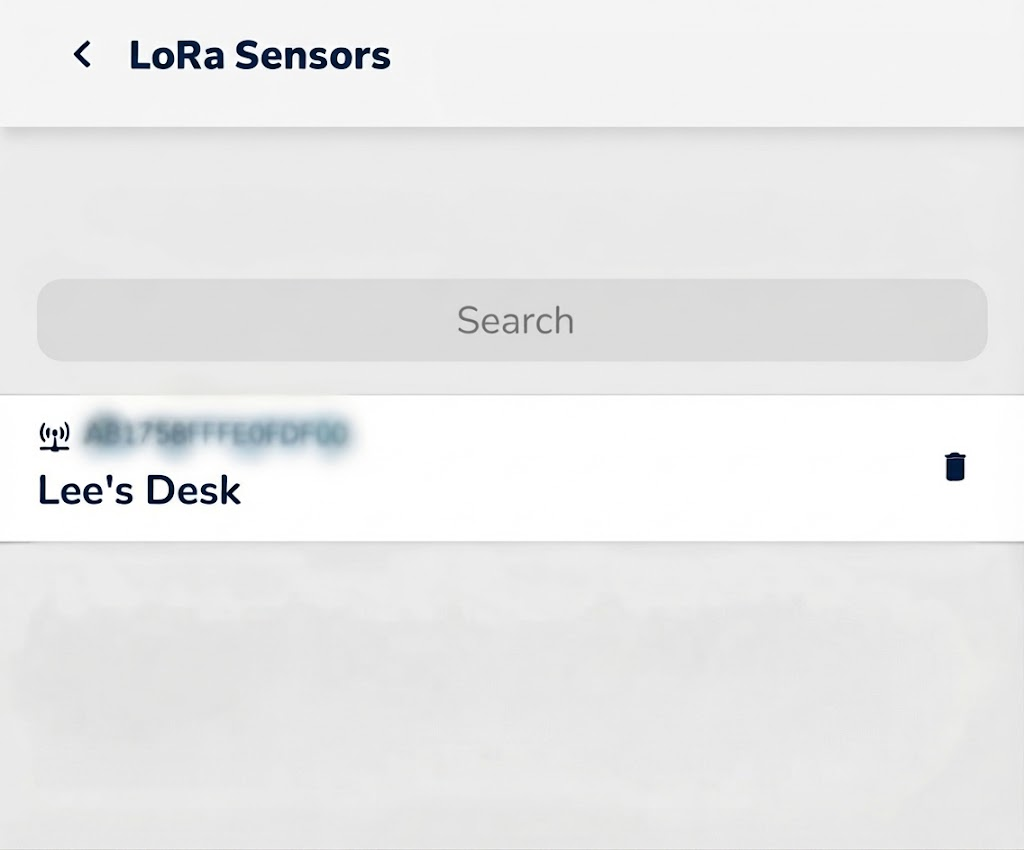
This is also shown in your GoBright portal under Settings > Devices > Sensors.
You can update what room / desk / parking space the sensor is linked to easily in the GoBright portal or the app.
The Portal & Hardware ▼
Now you see in the GoBright portal that the desk is showing as occupied (amber).
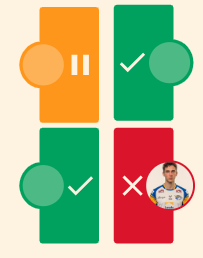
And...
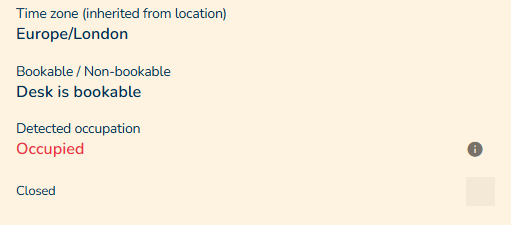
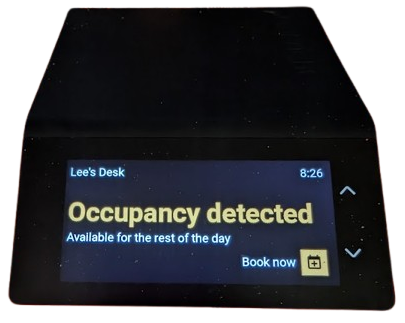
The image shows when an Interact is linked to the new desk sensor and no booking is in place, but someone is sat at the desk.
If an upcoming booking is in place, you can also enable the 'check-in by occupancy sensor' so the Interact will change from amber to red automatically when someone sits at the desk.
Technical Support ▼
We're here to help. Log a support ticket by contacting support@ascentae.com with as much information as possible and a member of the team will get back in touch.