
Overview & Battery Information ▲
The ERS2 is a wireless LoRaWAN® sensor for indoor environments that measures temperature, humidity, light, and motion (PIR).
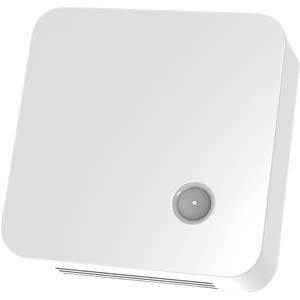
This article provides an overview of the Elsys ERS2 LoRa only, the ERS CO₂ LoRa sensor is not covered. As you're are deploying these in your smart office in combination with the GoBright solution, please ensure you have the GoBright AGW installed.
Important: Batteries are not included. The ERS2 requires 2 x AA 3.6V lithium batteries. Standard 1.5V batteries are not supported and will not power the device.
When using the recommended batteries, you can expect a battery life of up to 5 years, depending on usage.
Checklist ▼
✓
A smartphone with the GoBright app installed. This is available for free from both the Apple App Store and the Google Play Store.
✓
Full admin access rights for your GoBright account.
✓
The GoBright advanced gateway (AGW) that has been configured and commissioned. We've put together a full guide of how to get up and running in this article.
✓
Bluetooth and NFC enabled on the smartphone.
Recommendations & Info ▼
- The sensor has a detection range of up to 5 meters for human presence detection.
- Calculate the amount of sensors you'll need based on the area coverage.
- Do not place the sensors near windows (avoid sunlight).
- Do not place the sensors near HVAC systems as this will result in false occupancy detections and any temperature measurements.
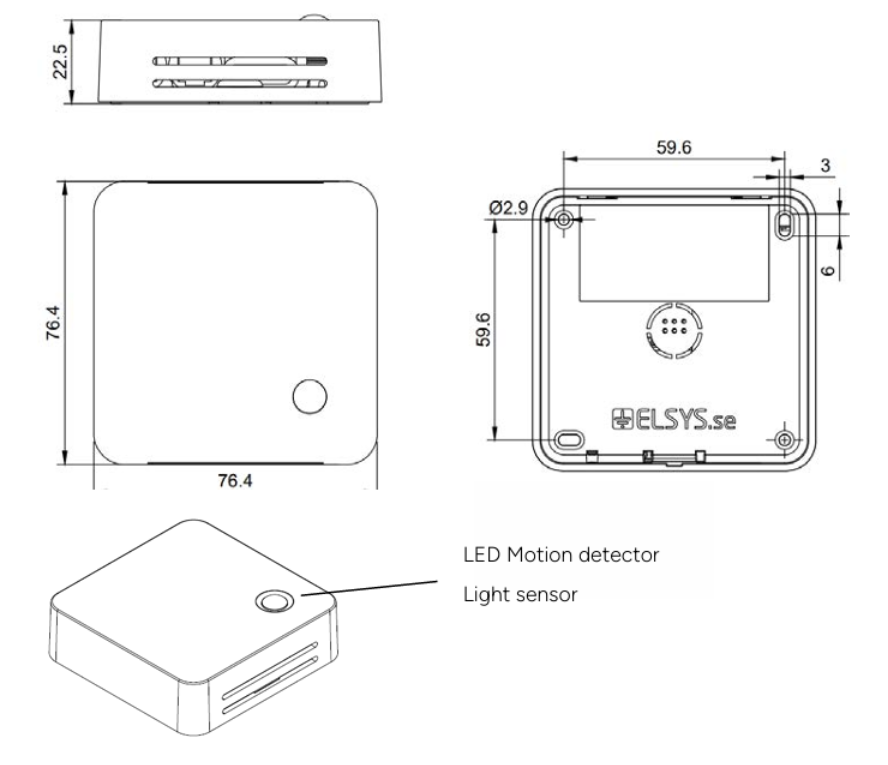
Dimensions ▼
All dimensions shown below are in mm.
Physical Installation ▼
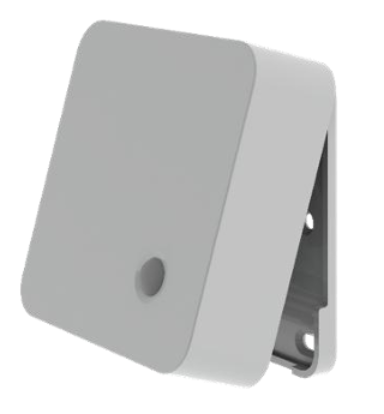
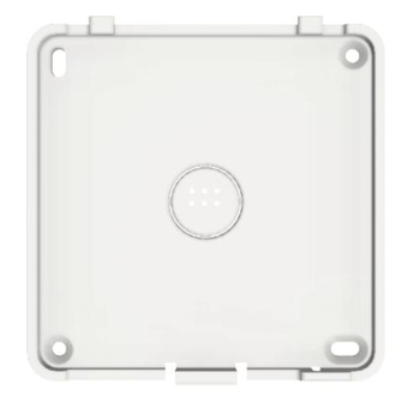 Ensure the backplate is securely fixed to the wall with at least 2 suitable screws & plugs, depending on the surface.
Now the backplace is securely in place, clip on the sensor.
LED Status' ▼
The LED indicator is located on the bottom -right (bottom-left if you're looking at the circuit board) and flashes every 30 seconds once powered up.
Here's a breakdown of the LED colour status:
| LED Color | LED Indication | Action |
| Long red blink, long green blink | Sensor is starting up | |
| Short yellow blink | LoRa join request transmission | |
| Short green blink | LoRa uplink transmission | |
| Short red blink | Sensor failed to send an uplink. Common cause is duty cycle limits. | |
| Long blue blink | Sensor has loaded new configuration from NFC. |
Configuring The GoBright Portal ▼
In this section we'll guide you through adding the device to the GoBright portal.
1. Load the GoBright app on your smart phone and select Admin tools from the menu option in the top-right corner.
2. Select LoRa Sensors and then Commission a Sensor.
3. Select Elsys
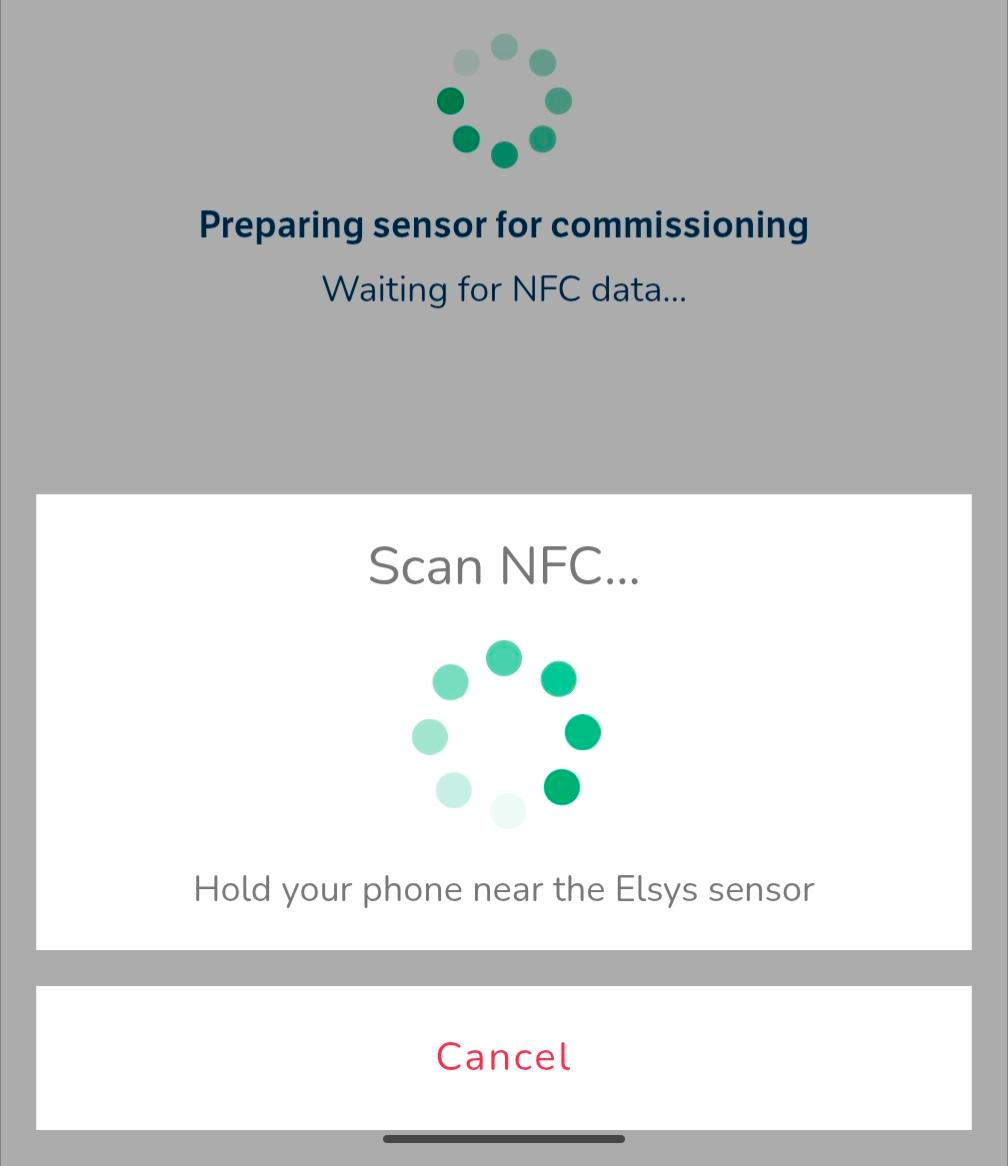
4.Tap your phone on the front of the sensor. It will automatically read the data from the device and show the serial number (Device EUI).
5. Link the device to an appropriate room/ desk.
6. Select 'Save' .
7. You'll be prompted to scan the device again, so tap your phone on the sensor. The PIR on the device will flash green to show a successful pair and then it'll quickly blink green every 60 seconds.
Now you have the sensor commissioned.
You can view the devices under the Admin Tools section on the GoBright app:
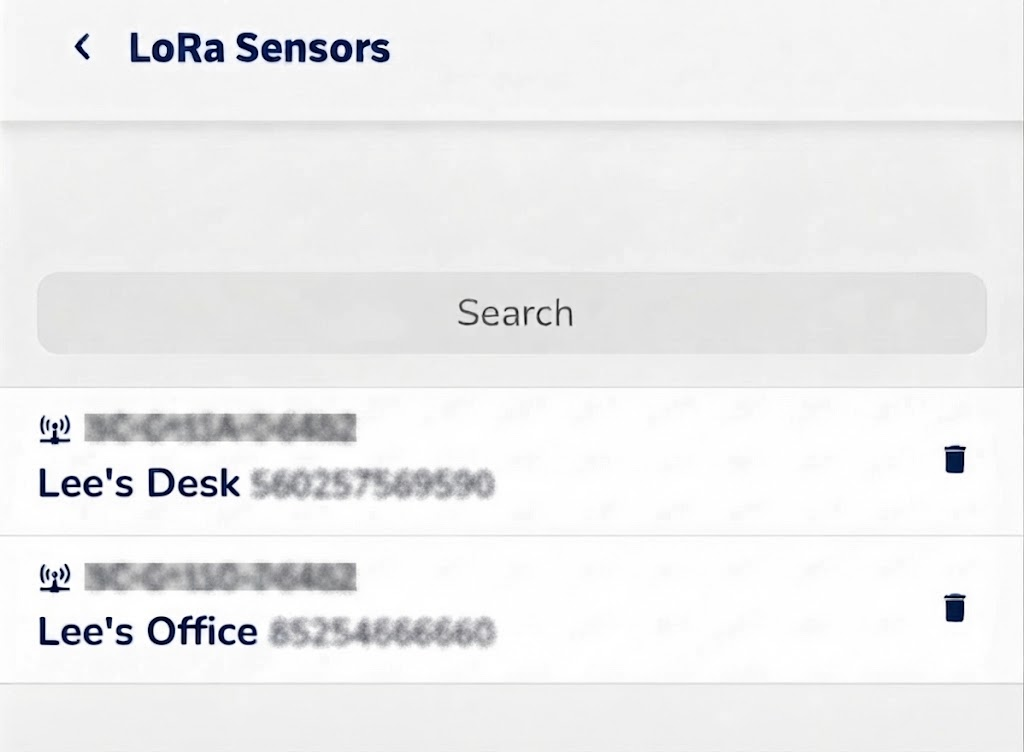
You can also view the sensors on the GoBright portal under Settings > Devices > Sensors:

Technical Support ▼
We're here to help. Log a support ticket by contacting support@ascentae.com with as much information as possible and a member of the team will get back in touch.